













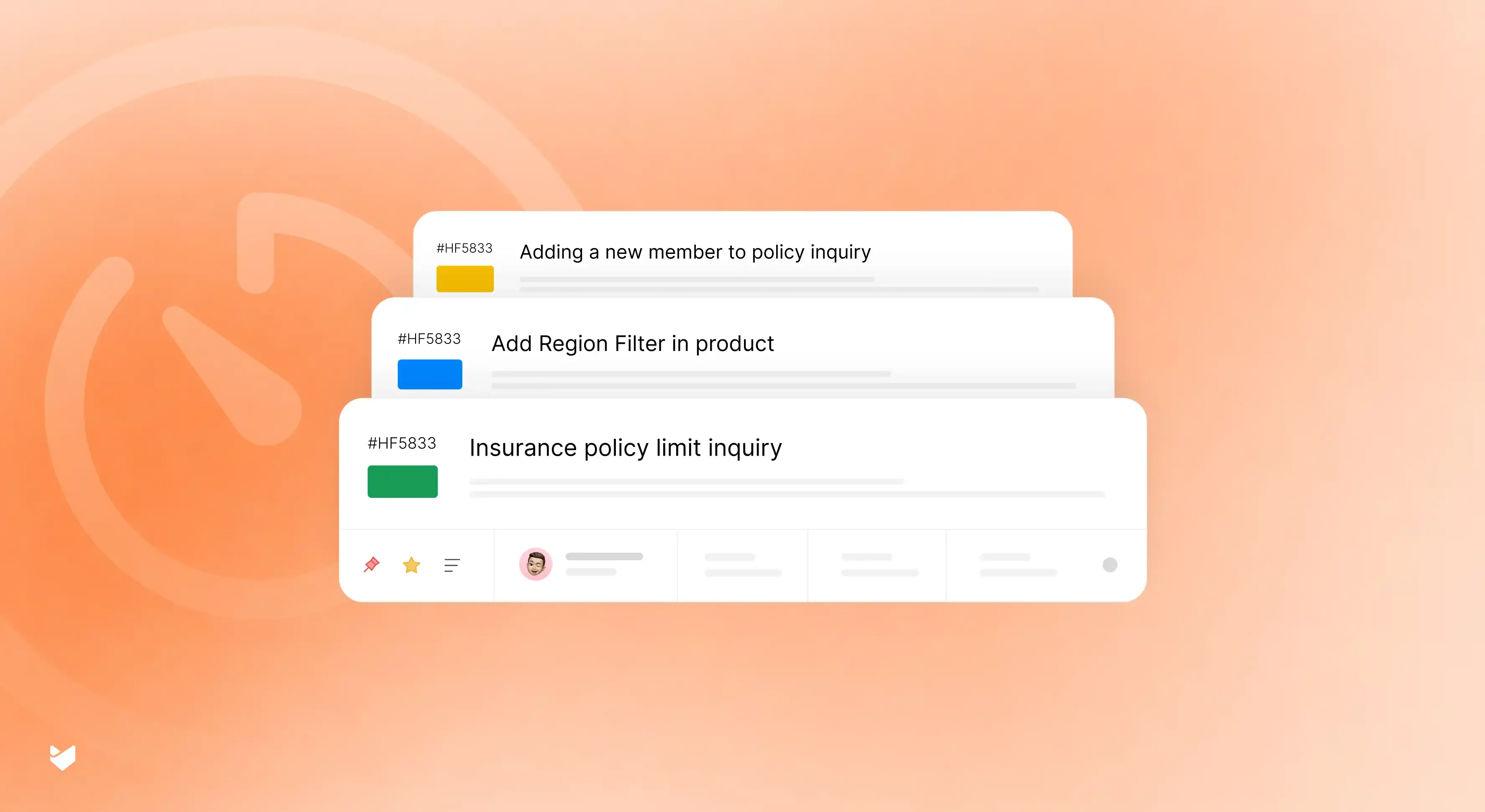
Label, Group, and Organize Tickets Effortlessly
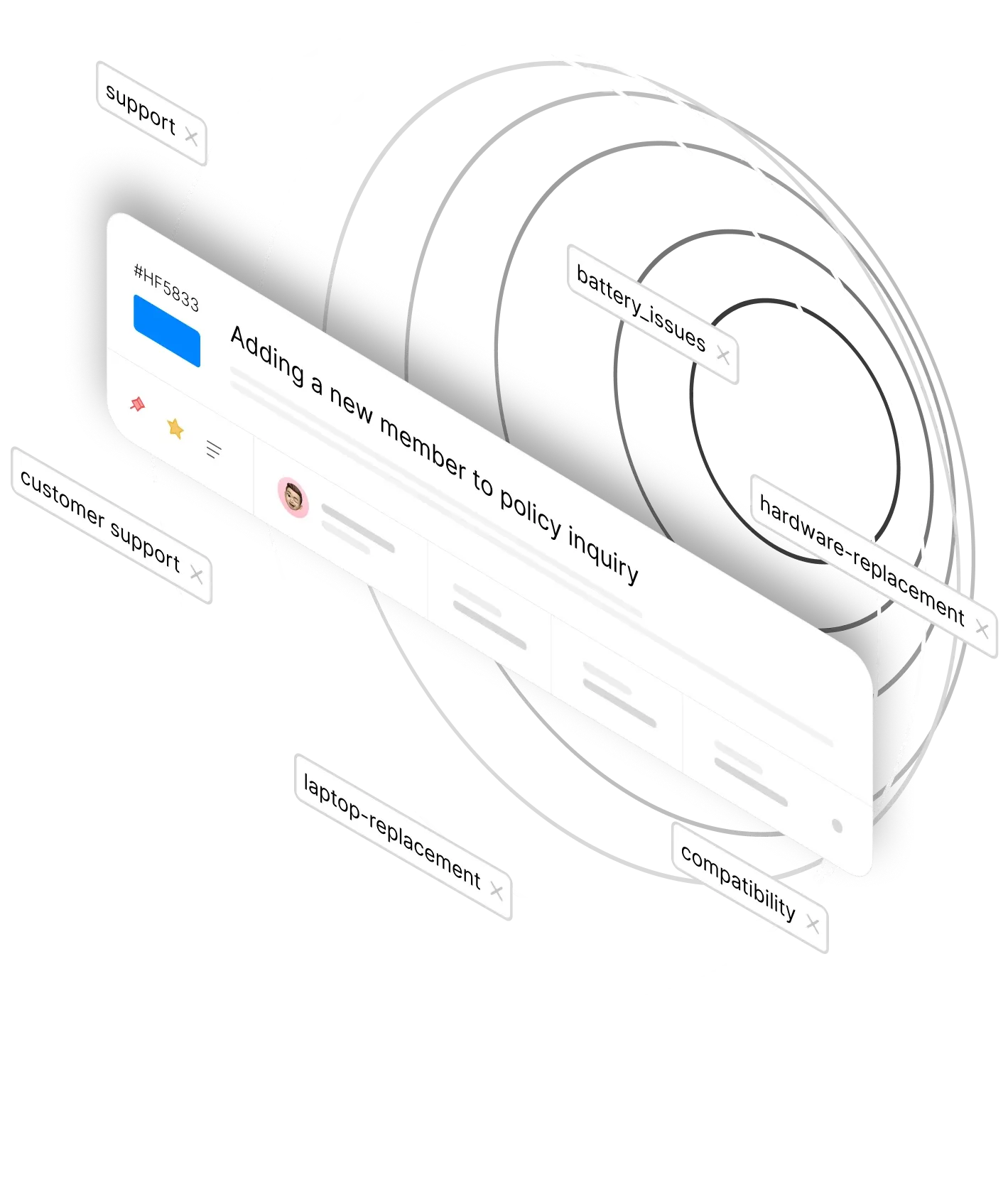












Struggling to Keep Your Ticket Queue Organized?
As ticket volumes grow, finding and grouping related issues becomes a challenge. Without a clear labeling system, tickets get lost, patterns go unnoticed, and reporting becomes guesswork. Ticket Tags give your team a simple yet powerful way to label, filter, and track tickets turning chaos into clarity.
Ticket Tags: Simple Labels, Powerful Results
Ticket Tags are a powerful way of labeling and grouping tickets. Use them for queue and filter conditions, automation workflows, and generating reports—all from a simple tagging system.
3 Ways
To Add Tags
Manual, Canned Actions, or Smart Rules
5 Actions
Tag Management
Create, Rename, Merge, Detach, Delete
100%
Flexibility
Use tags in filters, automations, and reports
Multiple Ways to Tag, One Organized Queue
Add Tags Manually
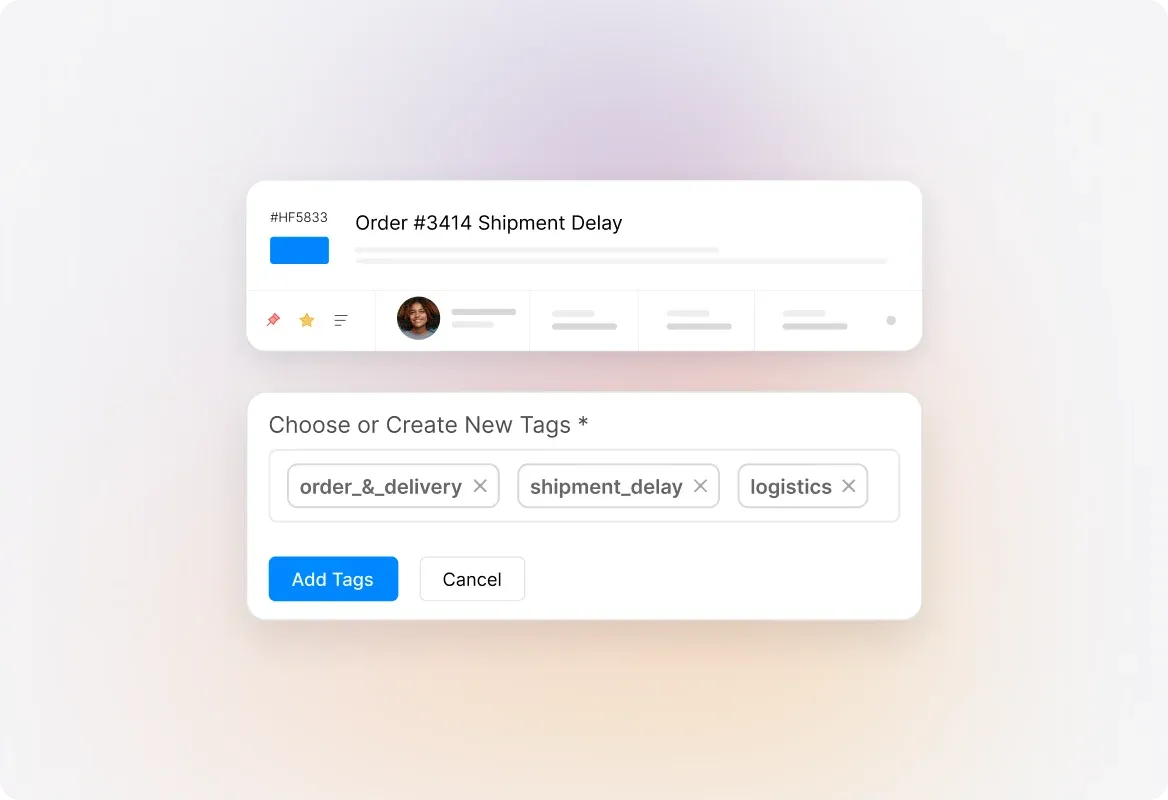
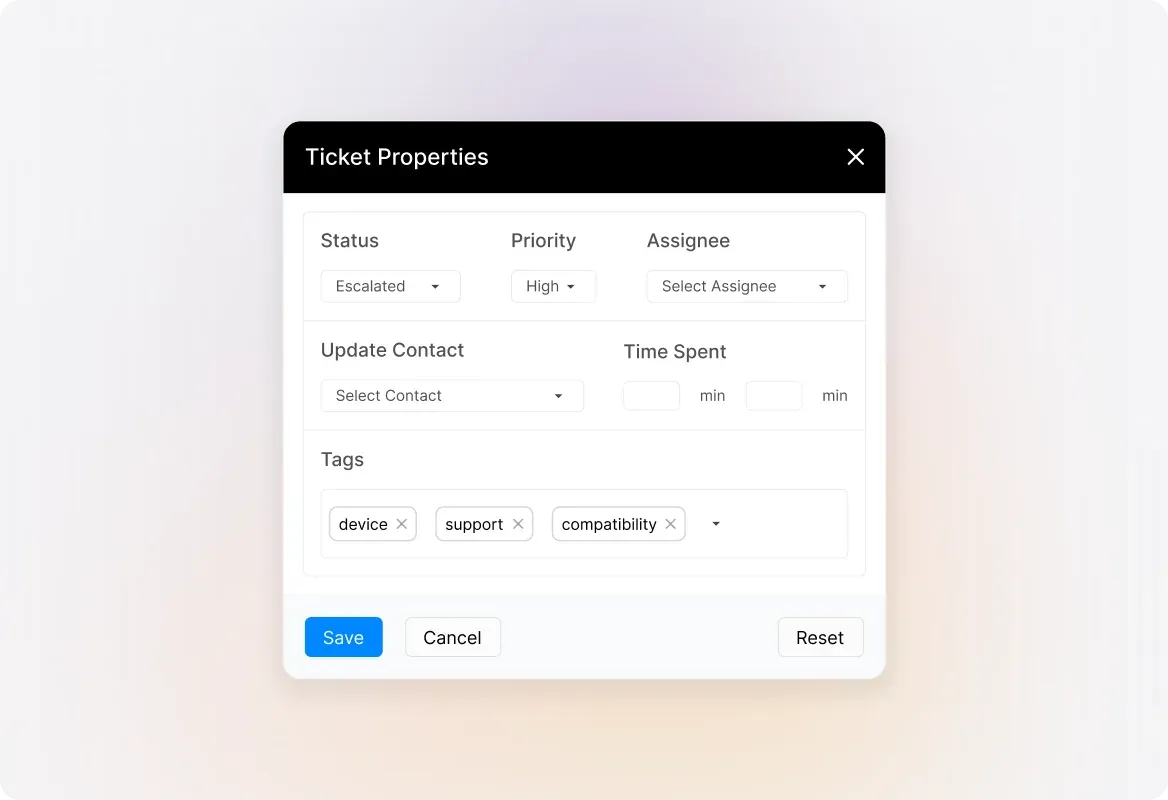
Need to tag a ticket on the spot? Simply add relevant tags directly from the ticket details page. Separate multiple tags with commas and you're done—quick, easy, and flexible for any situation.
Automate Tags with Canned Actions
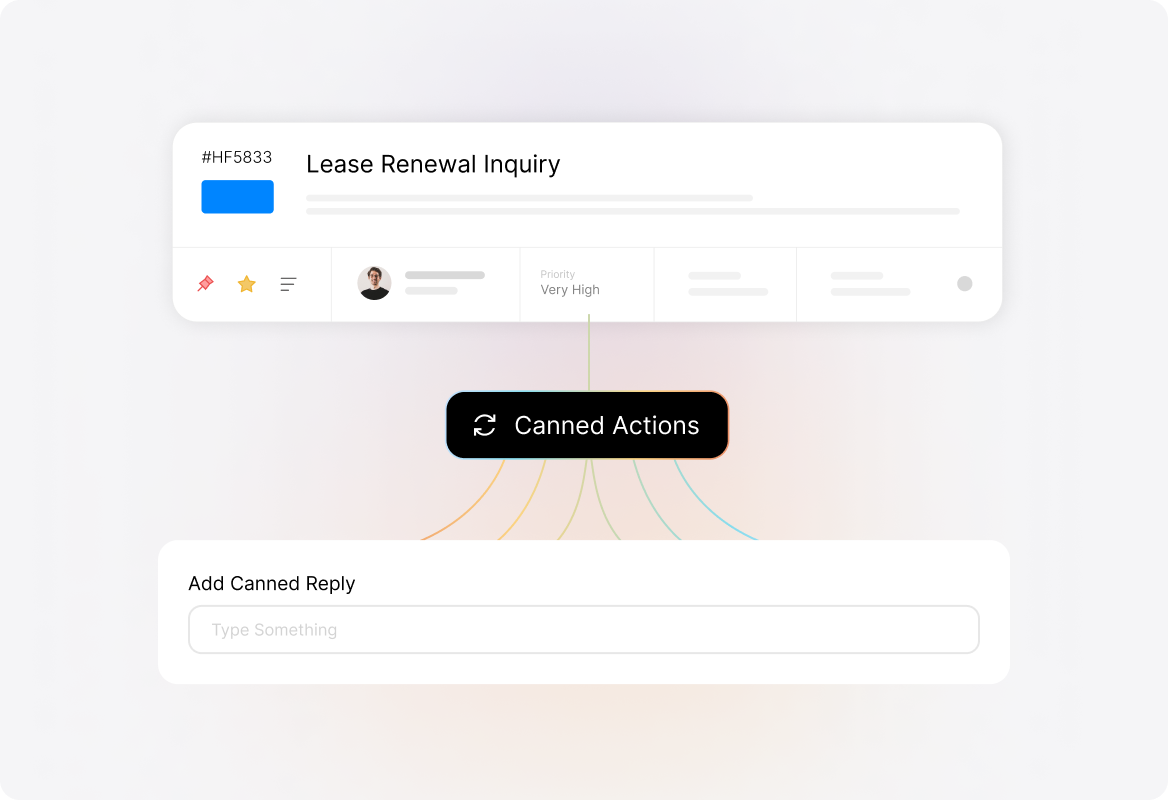
Save time by embedding tags into your canned actions. Every time an agent applies a canned response, the associated tags are automatically added to the ticket—no extra steps required.
Tag Tickets with Smart Rules
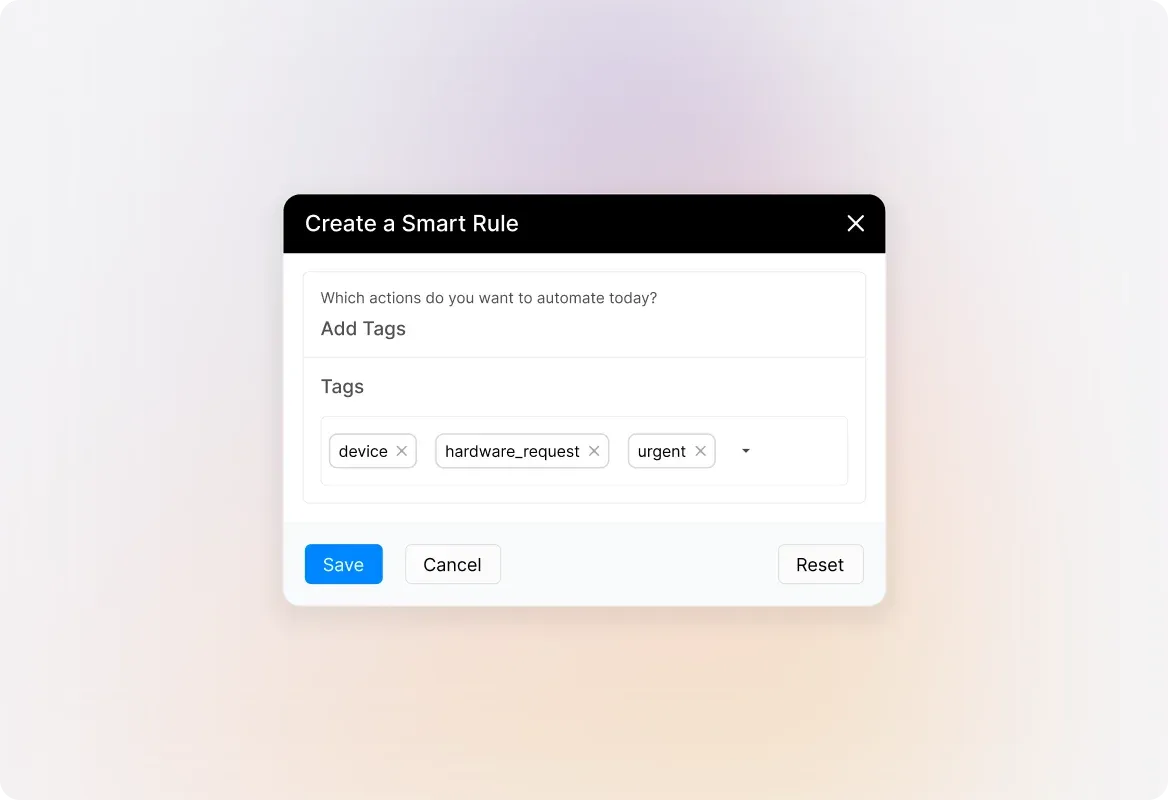
Let automation handle the heavy lifting. Set up Smart Rules to automatically tag tickets based on conditions like category, priority, or keywords. Tickets get labeled the moment they arrive—zero manual effort.
Full Tag Management
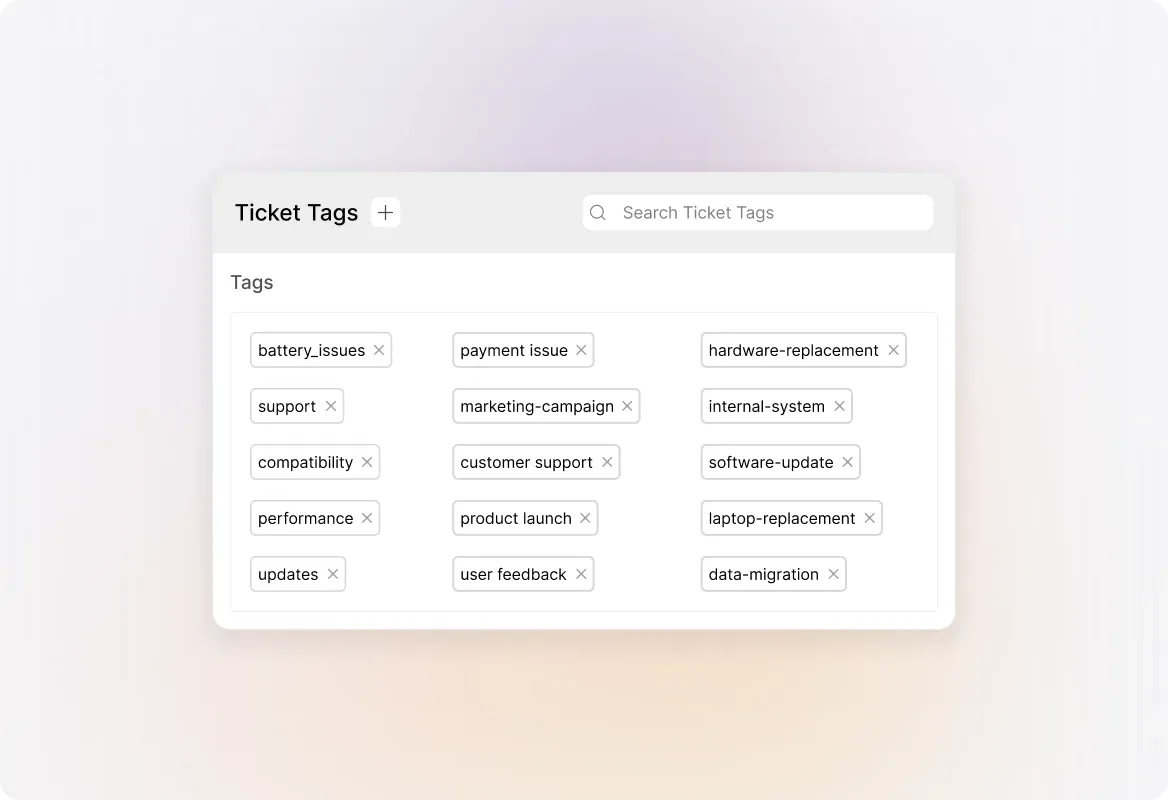
Stay in control of your tagging system. Create new tags, rename existing ones for clarity, merge duplicate tags to consolidate, detach tags from specific tickets, or delete tags you no longer need. Complete flexibility at your fingertips.
Use Tags for Filters and Queues
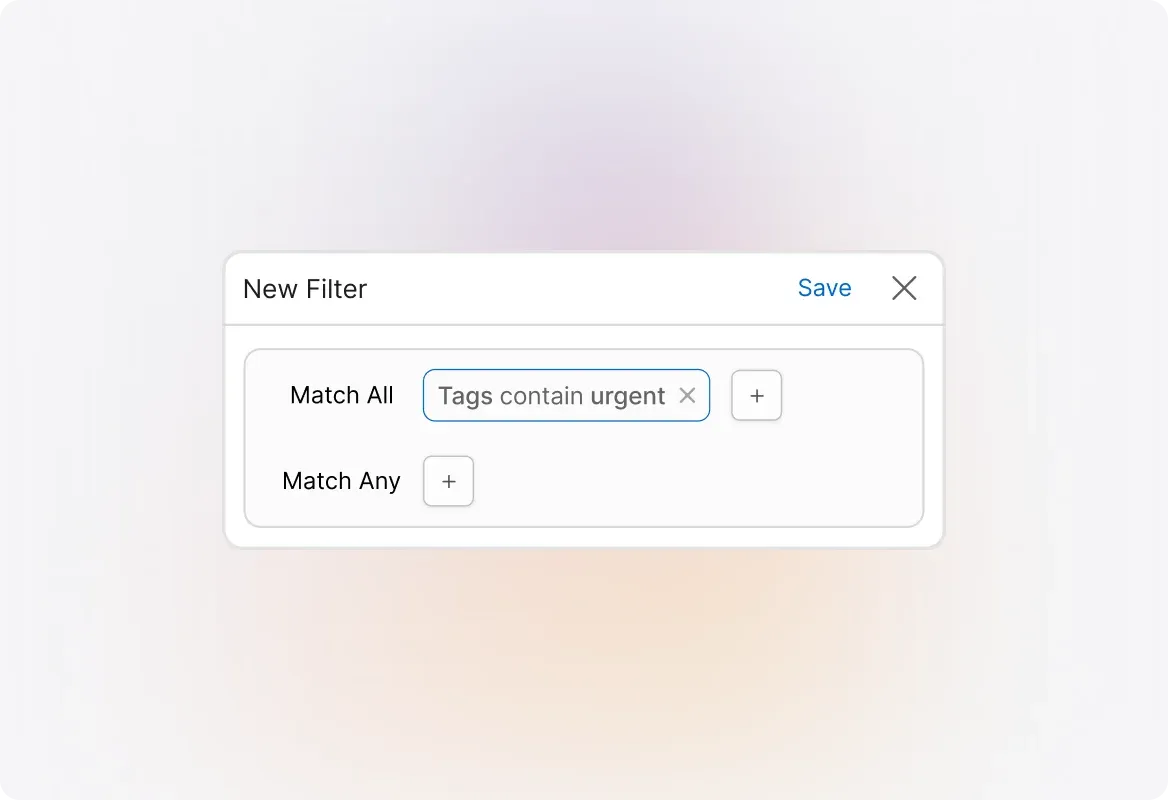
Tags aren't just labels—they're powerful filters. Use tags as conditions in your ticket queues and custom filters to instantly surface the tickets that matter most. Find what you need in seconds.
Generate Reports with Tags
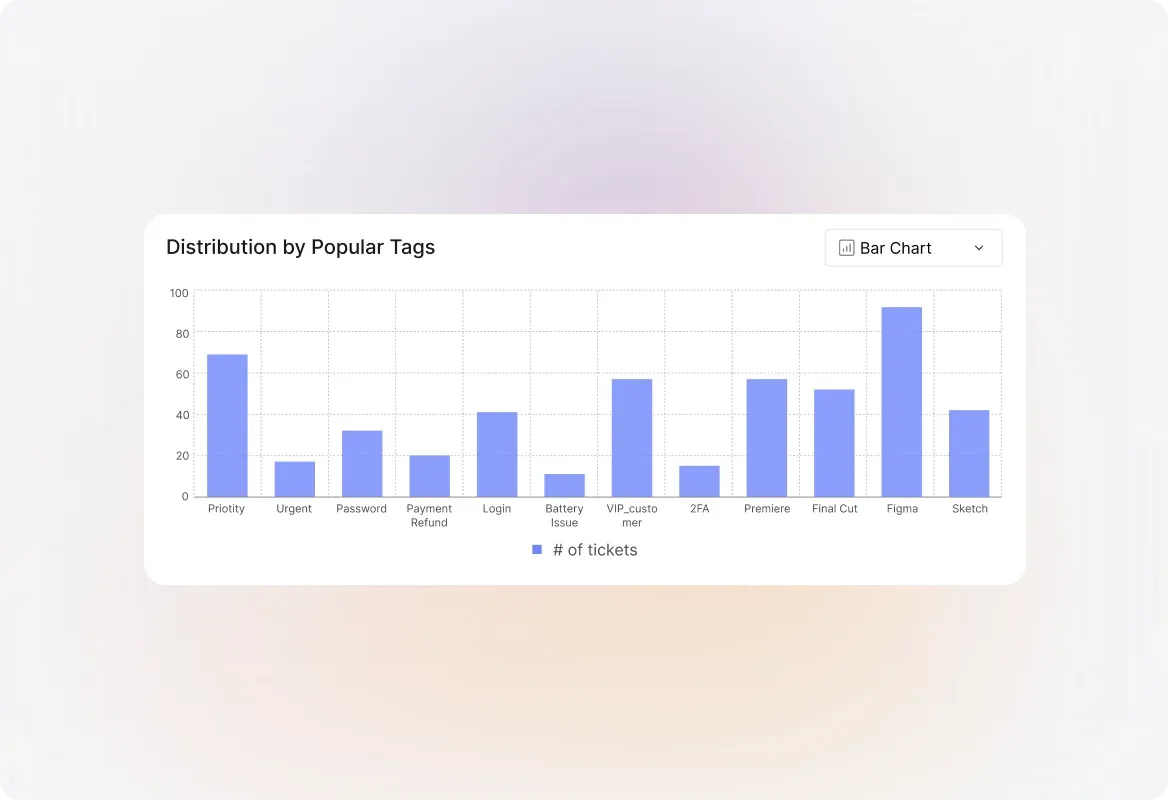
Turn tags into insights. Use tagged tickets to generate reports that reveal patterns, track issue types, and measure team performance. Make data-driven decisions with ease.
Explore Other Features of HappyFox

FAQs
Ready to Organize Your Support Queue?
Let us show you how Ticket Tags can bring clarity and efficiency to your daily support operations.

Use Cases
For Business Type
For Industries


Copyright ©2026 HappyFox Inc. All rights reserved.