IT Support Teams
Find synced employee records in the HappyFox Contacts module.
 Help Desk
HappyFox Help Desk integration
Sync BambooHR employees into HappyFox contact records.

In Apps, open Contact Management, select BambooHR, and click Install.
Add your BambooHR URL and API key to connect the account.
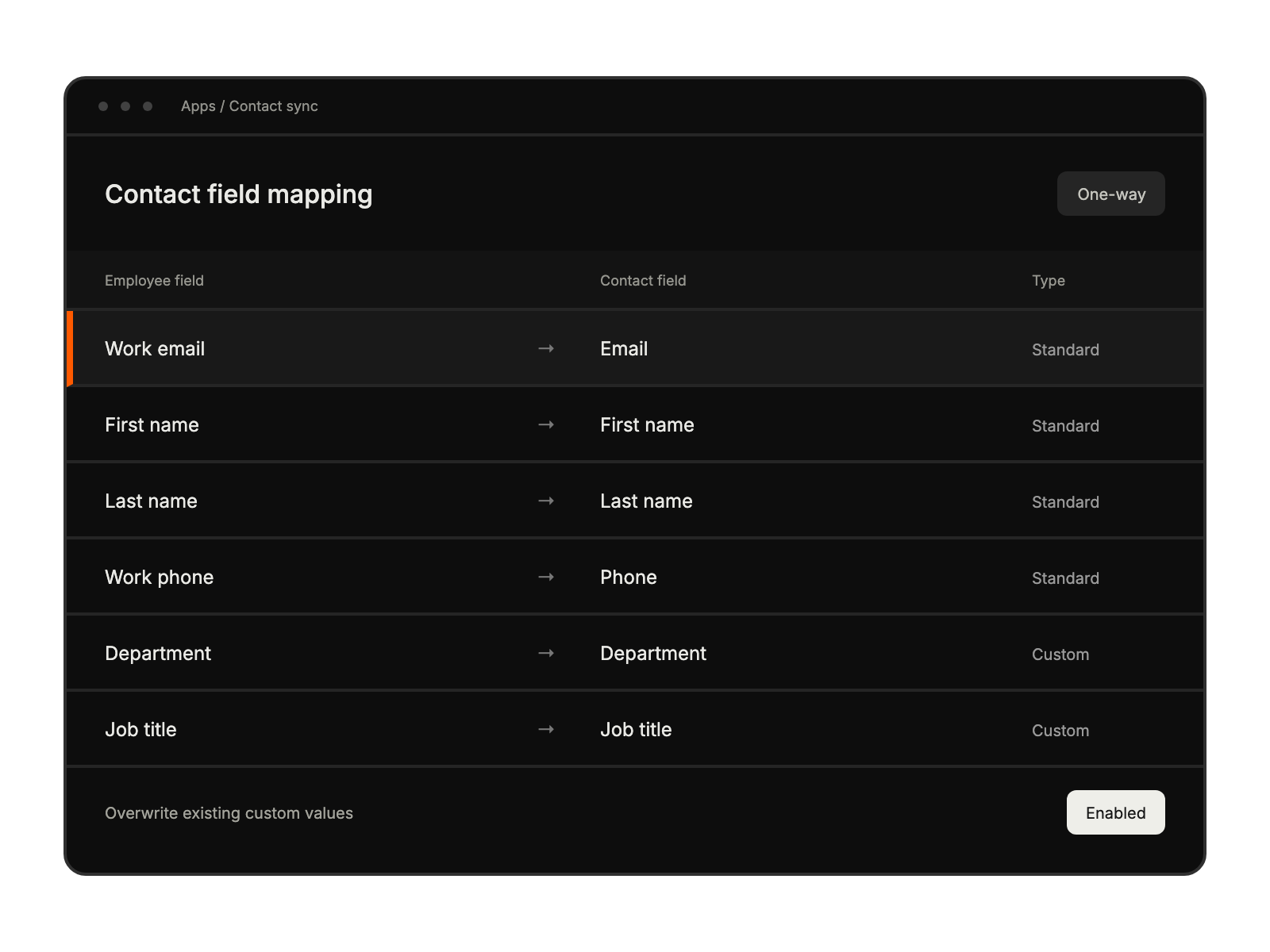
Match name, email, and phone fields, then map any additional fields to HappyFox custom contact fields.
Choose whether synced values can update existing custom fields, then save to trigger synchronization.
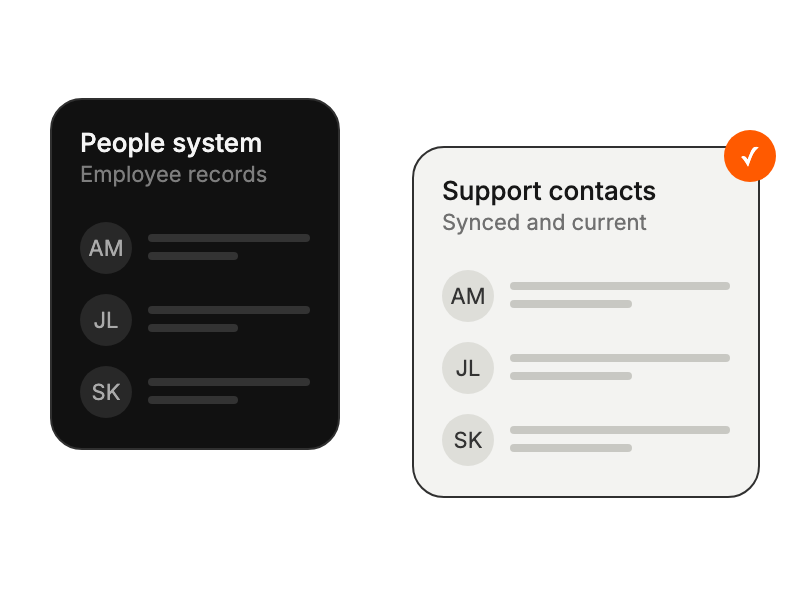
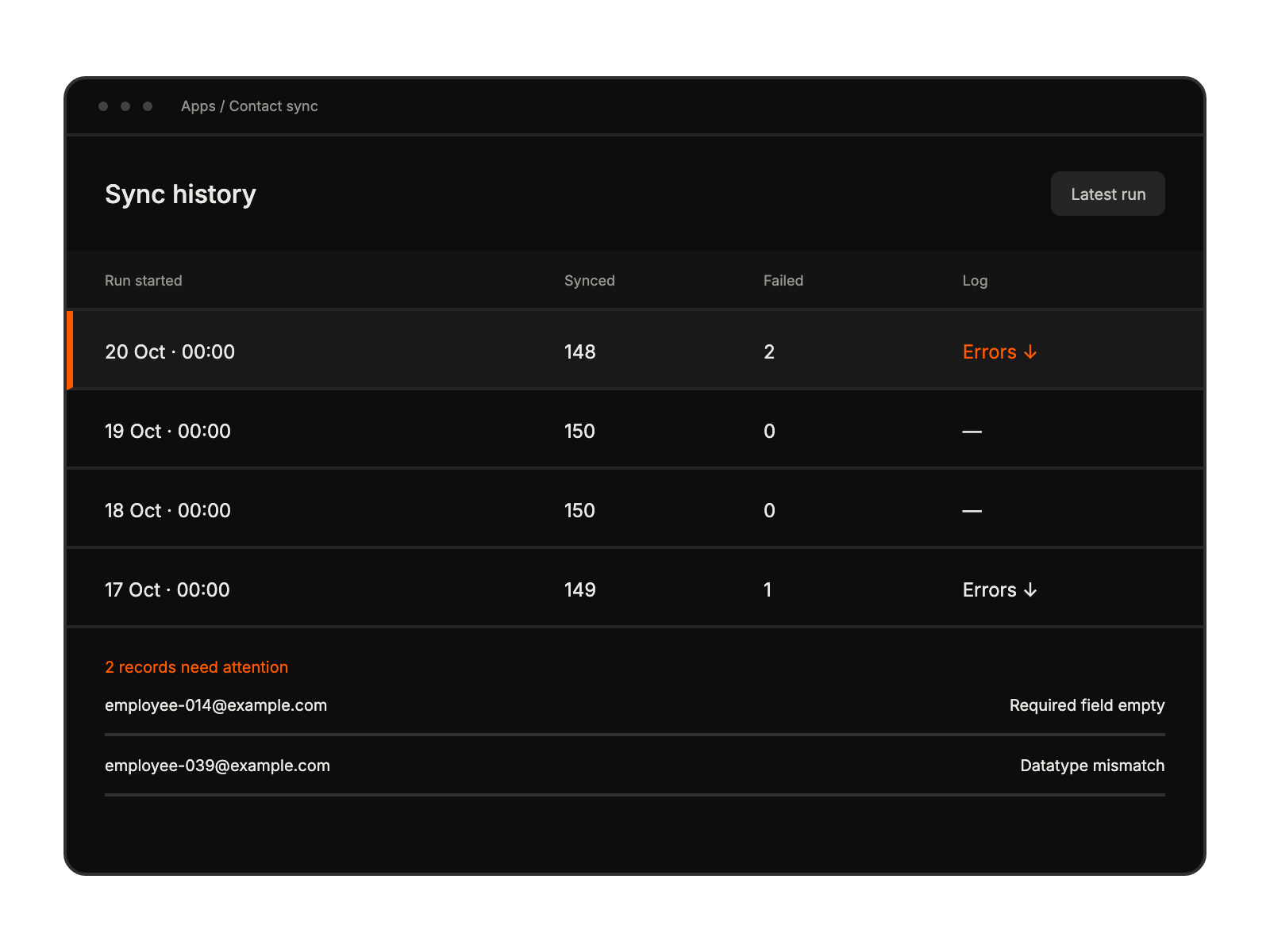
Find synced employee records in the HappyFox Contacts module.
Open an employee’s BambooHR record from the icon beside their HappyFox contact.
Adjust field mappings and overwrite settings from the synced account configuration.
The HappyFox agent configuring the integration needs Manage Apps permission.
Have your account URL and API key ready before starting setup.
BambooHR changes flow into HappyFox. HappyFox edits do not sync back, and deleting an employee in BambooHR does not remove their HappyFox contact.


